

Your camera, on your phone
What Is Sikocam?
Sikocam is a WiFi camera companion app for Android: it connects your phone to a compatible WiFi camera so you can watch the live picture, check recordings and control the camera from one place. Open the sikocam App and the feed from your front door, your shop counter or your child's room is on screen in seconds, at home or away.
The siko cam setup follows the pattern this kind of app does best. The camera joins your WiFi network, the app finds it, and from then on the phone is the screen, the speaker and the remote control for that camera. You can pan and tilt a moving camera, listen in, talk back through the camera speaker, save snapshots and clips, and let motion alerts tell you when something actually needs your attention.
This page is the home of the Sikocam download for Android: what the app does, how pairing works, the settings that matter, and honest notes from testing the app with real cameras on a real home network.
The tools you will actually use
Sikocam Features
Six tools carry almost every session in the app. Each one below is written the way it behaves in daily use, not the way a box label would put it.
Live view
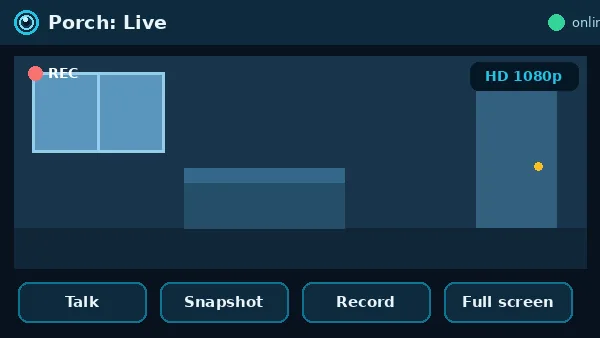
The live feed opens as soon as you tap a camera. Switch between standard and high definition streams, flip the picture full screen, and keep an eye on several rooms by moving between cameras in the device list.
Recording playback
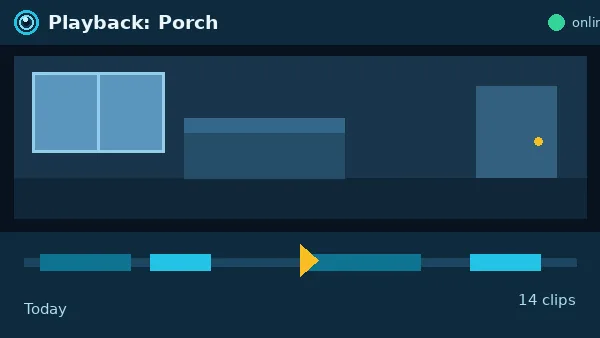
Scroll back through recorded clips on a timeline, jump to the moment an alert fired, and save the clips that matter to your phone before storage rolls over them.
Two way talk
Hold the talk button and your voice comes out of the camera speaker. Answer the door from the sofa, calm a pet, or tell a delivery rider where to leave a parcel.
Pan and tilt control
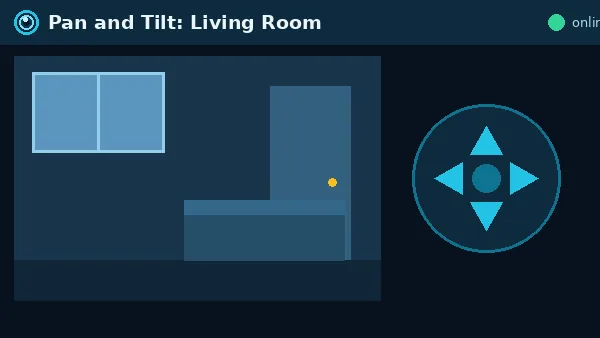
On cameras with a moving head, swipe or use the on screen pad to look around the room. One fixed view rarely covers a whole space, and this is how you check the corner the camera was not pointing at.
Motion alerts
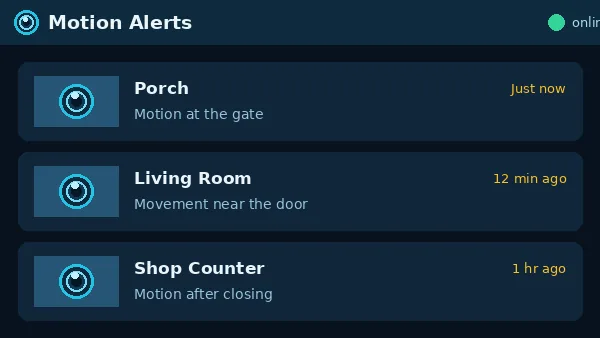
When the camera sees movement, your phone gets an alert with a snapshot. Sensitivity settings decide whether a passing cat, a curtain in a breeze or a person at the gate is worth waking you for.
Snapshots and clips
Save a still or a short clip from the live feed straight to your phone gallery, then share it the way you share any photo: to family, to a neighbour, or to your building group chat.
Inside the app
Sikocam Screenshots
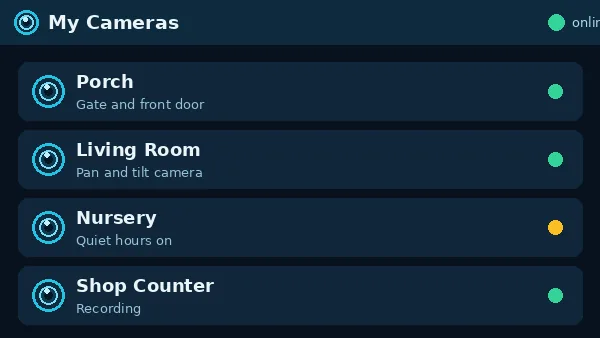
These views show the main screens of the app as our test cameras present them: the device list, the live view with its control row, playback, the pan and tilt pad and the alerts inbox.
On your phone in minutes
How to Install Sikocam on Android
Our install routine, in the order we run it on every test phone:
- Open the download page from the button above and wait for the short countdown to finish.
- Tap the download button when it appears and let the file finish downloading completely.
- Open the finished file. If Android asks, allow installs from your browser for this one install, then confirm.
- Launch the app, create your account or sign in, and keep your camera and its power supply within reach.
- Add the camera from the app home screen and follow the pairing prompts until the live picture appears.
A half finished download is the most common reason an install refuses to start. If anything interrupts the file, delete the partial copy and fetch it again rather than tapping a broken file twice.
First pairing, done calmly
Pairing Your First Camera
Pairing asks three things of you: the camera powered on, your phone on the same WiFi network the camera will use, and your WiFi password typed exactly. Most home cameras in this class join a 2.4 GHz network, so if your router offers two network names, pick the 2.4 GHz one for the pairing step. You can move the phone back afterwards.
In the app, tap the add button, choose your camera type, and follow the prompt on screen. Some cameras pair from a QR code the app shows to the camera lens; others pair through a hotspot the camera broadcasts. Either way, wait for the spoken or light confirmation from the camera before you rush ahead, then name the camera by its room. A name like Porch or Counter saves real seconds later, when an alert arrives and you want to know which feed to open.
Checked before it is listed
Safety and Verification
Every build listed here passes the same checks: the file is scanned before publication, installed on our own Android test phones, and run through a full pairing with a real camera before the download button is enabled. We check the live feed, playback, talk and alerts on the published build, not on a different copy.
For your own safety inside the app, use a strong account password, turn on every sign in protection the app offers, and keep camera firmware updated from inside the app when it prompts you. A camera is a small computer with a lens; treat its account the way you treat your email account.
The facts, plainly
Technical Details
The app runs on Android phones and talks to paired cameras over your local WiFi network and, once pairing is complete, through your internet connection when you are away from home. Live view quality depends on the camera model and your connection: the app offers standard and high definition stream choices so a slow connection can trade sharpness for smoothness.
Recordings live where your camera setup puts them: on a memory card inside the camera, in the app recording options your camera supports, or both. Playback in the app reads that storage back over the network, which is why playback feels best on a steady home connection.
An honest balance
Pros and Cons
What works well: one app for live view, playback and talk; pairing that most people finish in one sitting; alerts that carry a snapshot so you can judge them at a glance; pan and tilt control that makes one camera cover a whole room.
What to know: the app can only show what your camera hardware can do, so night picture, zoom and sound quality follow the camera, not the app. Viewing away from home needs a decent connection at both ends, and motion alerts need tuning in the first week so they match your home.
When something misbehaves
Troubleshooting
Camera shows offline: power the camera off and on, check the router is up, and confirm the camera is still within WiFi range. Most offline reports end at one of those three.
Live view spins but never opens: switch the stream from high definition to standard. If it opens at once, your connection is the limit, not the camera.
Alerts arrive too often: lower motion sensitivity one step and aim the camera away from moving curtains, fans and busy roads. Small aim changes beat big setting changes.
Talk sounds broken: move closer to your router for a test call. Two way talk is the first feature to suffer on a weak signal.
Staying current
How to Update
When a newer build is published here, install it over the existing app. Your account, your paired cameras and your settings stay in place, because they live with your account and your cameras rather than with the app file. After an update, open one live feed and one recording to confirm everything carried across, and check for a camera firmware prompt while you are there.